Installing CART
CART is provided to you as a zipped, self-extracting file. Before you attempt
to install CART, make sure you close all open Windows applications, including
any virus scan programs that may be running. If you do not close all programs,
CART may not install properly.
Windows users:
Open File Manager and locate cart100a.exe in the directory to which you
downloaded CART.
Double-click CART100a.exe to begin installation.
Windows95 users:
Open Windows Explorer and locate cart100a.exe in the directory to which you
downloaded CART.
Double-click CART100a.exe to begin installation.
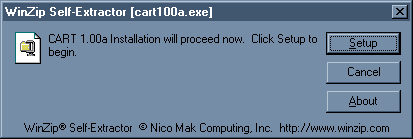
You will see the WinZip Self-Extractor screen. Click Setup to continue.
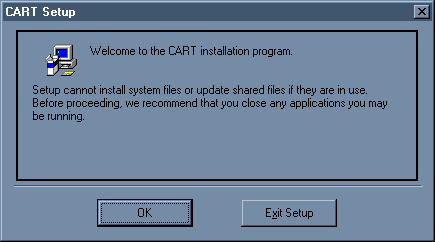
As the installation proceeds, the CART setup screen will appear. Click OK to
continue.
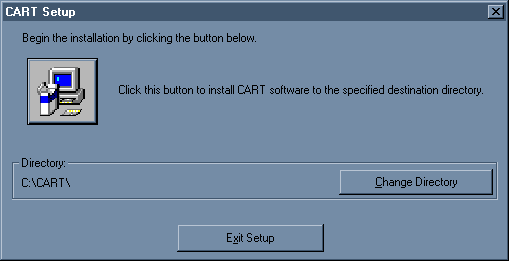
By default, CART will install onto the C: drive. If you wish to install the
program in another directory, click Change Directory and follow the onscreen
instructions. When you are ready to proceed click the large icon in the upper-left
corner of the CART Setup screen.
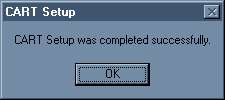
The installation process will continue and when finished, the following screen
will appear:
Win 3.1 users: Open the CART Program Group and double-click the CART icon to run.
Win 95 users: Click Start, Programs, then CART and single-click the CART icon to run.
You are now ready to begin using CART!